
Quick Start
This guide walks you through creating your first specification with SpecTacular in under 5 minutes.
Prerequisites
Make sure you've completed the installation:
- ✅ CLI installed (
spectacular --version) - ✅ VS Code extension installed
- ✅ Project initialized (
spectacular init)
Step 1: Open the Dashboard
- Open your project in VS Code
- Click the SpecTacular icon in VS Code's Activity Bar (left sidebar)
- Click "Open Dashboard" to view your specs
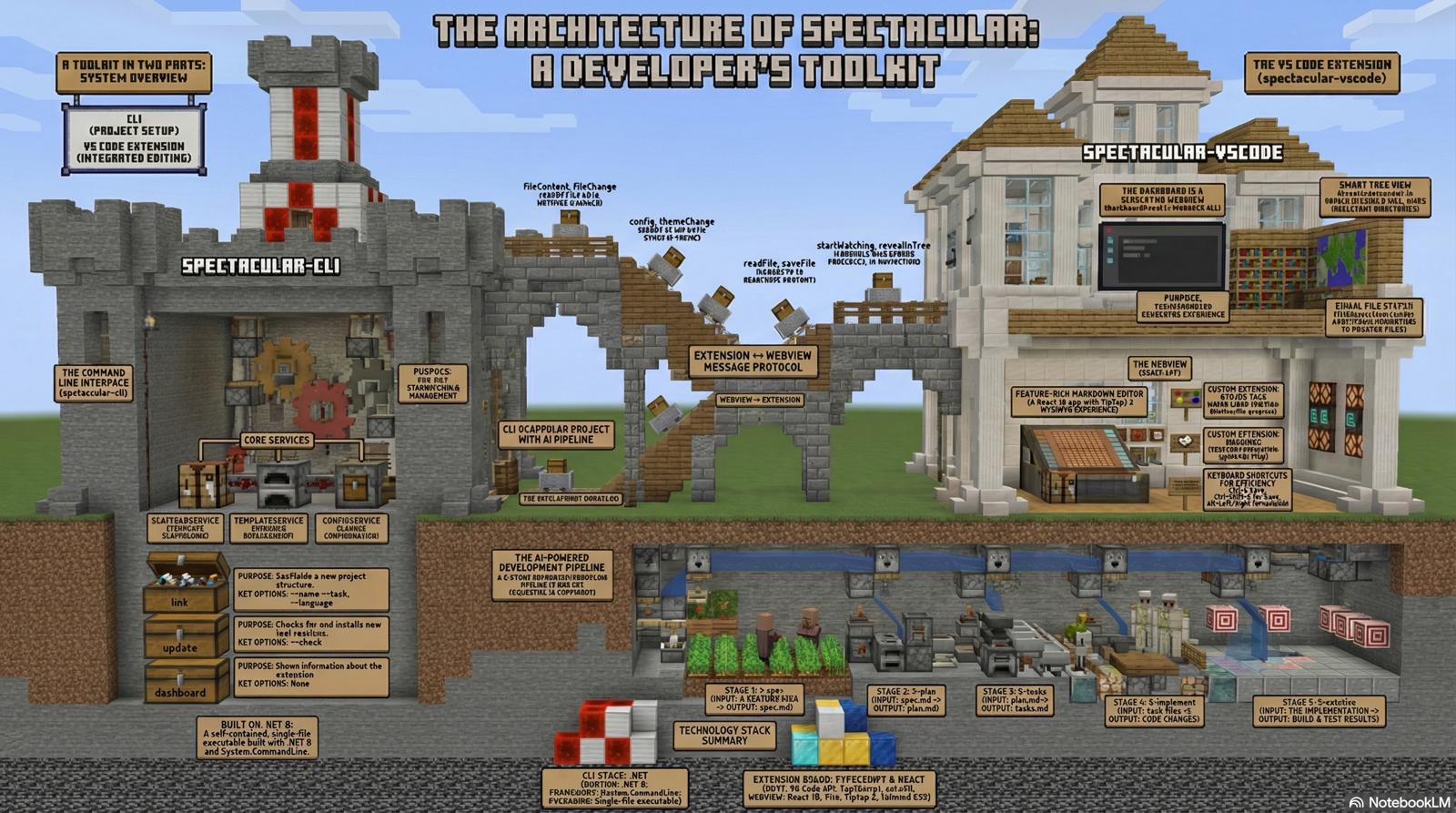
The dashboard provides:
- Content preview - Rich markdown rendering
- Specs tree - Navigate all specification files
- WYSIWYG editor - Edit markdown visually
- Status indicators - Visual task completion status
Step 2: Create Your First Specification
Use the CLI or VS Code to create a new specification:
# Using Claude Code (if installed)
/spec "Add user authentication"

# Or manually create a file
cd specs
mkdir 001-user-authentication
cd 001-user-authentication
Create authentication-spec.md:
---
type: spec
status: pending
created: 2024-12-22
---

# User Authentication Specification

## Overview
Implement secure user authentication with JWT tokens.

## Requirements

### Functional Requirements
- Users can register with email and password
- Users can log in and receive a JWT token
- Token expires after 24 hours
- Password must be hashed (bcrypt)

### Non-Functional Requirements
- Authentication response time < 500ms
- Passwords must meet complexity requirements
- HTTPS required for all auth endpoints

## Success Criteria
- [ ] User can register successfully
- [ ] User can log in and receive valid token
- [ ] Invalid credentials are rejected
- [ ] Token expires correctly
- [ ] All security tests pass
Step 3: Use Status Tags
SpecTacular supports visual status tags:
Current status: #status/pending

After implementation: #status/done
When blocked: #status/blocked
During work: #status/in-progress
These render as colored badges in the dashboard!
Step 4: Link Between Documents
Use wikilinks to reference other specs:
This feature depends on [[database-setup]] and [[api-framework]]

See also: [[specs/authentication/oauth-spec]]
Click wikilinks in the dashboard to navigate instantly.
Step 5: Create Tasks
Break down the spec into tasks:
/tasks "authentication-spec"This creates a task breakdown:
---
type: task
status: pending
spec: [[authentication-spec]]
---

# Implement User Registration

## Acceptance Criteria
- [ ] Create user model with email, password fields
- [ ] Implement password hashing with bcrypt
- [ ] Add email validation
- [ ] Create registration endpoint
- [ ] Write unit tests

## Implementation Notes
- Use bcrypt with salt rounds = 10
- Email regex: RFC 5322 compliant
- Return 201 Created on success
Auto-Status Magic: When you check all criteria boxes, SpecTacular automatically updates the task status to done!
Step 6: Use the WYSIWYG Editor
Click the "Edit" button in the dashboard to switch to visual editing mode:
- Tables - Create and edit tables visually
- Task lists - Add checkboxes with a click
- Formatting - Bold, italic, code, headings
- Links - Insert links and wikilinks
- Images - Embed images
All edits are saved back to markdown format.
Step 7: AI-Assisted Workflow
If you initialized with .claude/commands/, use the AI workflow:
# 1. Create detailed specification
/spec "feature description"

# 2. Generate implementation plan
/plan

# 3. Break down into tasks
/tasks

# 4. Implement with guidance
/implement

# 5. Validate and review
/validate
This full pipeline is documented in Specification Pipeline.
Next Steps
Now that you've created your first specification, explore:
- CLI Commands - Learn all
spectacularcommands - Extension Features - Deep dive into dashboard features
- Status Tags - Master status tag conventions
- Task Management - Advanced task workflows
- Configuration - Customize templates and settings
Common Workflows
Create a New Feature
cd specs
mkdir 002-feature-name
cd 002-feature-name

# Create spec
code feature-spec.md

# Break into tasks (using Claude Code)
/tasks
Track Progress
Use the Specs Tree view to see all specs and their status:
specs/
├── 001-user-authentication/ #status/in-progress
│   ├── authentication-spec.md
│   └── tasks.md
└── 002-payment-integration/ #status/pending
    └── payment-spec.md
Link Specifications
Create a master index:
# Project Specifications

## Core Features
- [[001-user-authentication/authentication-spec]]
- [[002-payment-integration/payment-spec]]
- [[003-email-notifications/notifications-spec]]

## Infrastructure
- [[database-setup]]
- [[deployment-pipeline]]
Tips
💡 Use frontmatter - YAML metadata helps organize specs:
---
type: spec
status: pending
priority: high
assignee: @username
created: 2024-12-22
---
💡 Real-time updates - Files update automatically when changed on disk
💡 Keyboard shortcuts - Use VS Code shortcuts for quick navigation
💡 Markdown-first - All files are plain markdown; no lock-in
Ready to dive deeper? Check out the complete guide.